Set up your business profile in ChatGPT
A step-by-step guide to claiming your business in ChatGPT's Business Hub, with screenshots from a real setup.
For US businesses only. BizPlug's free profile setup, and this guide, are for businesses located in the United States.
Outside the United States? The BizPlug ChatGPT plug-in works for businesses in any country. Contact us and we will confirm your setup with you. Contact us
Watch the walkthrough
Before you start
- A business located in the United States
- A ChatGPT account you can sign in to
- Your business name and website
- A government-issued ID for the person who will manage the profile
- Step 1
Open Business Hub
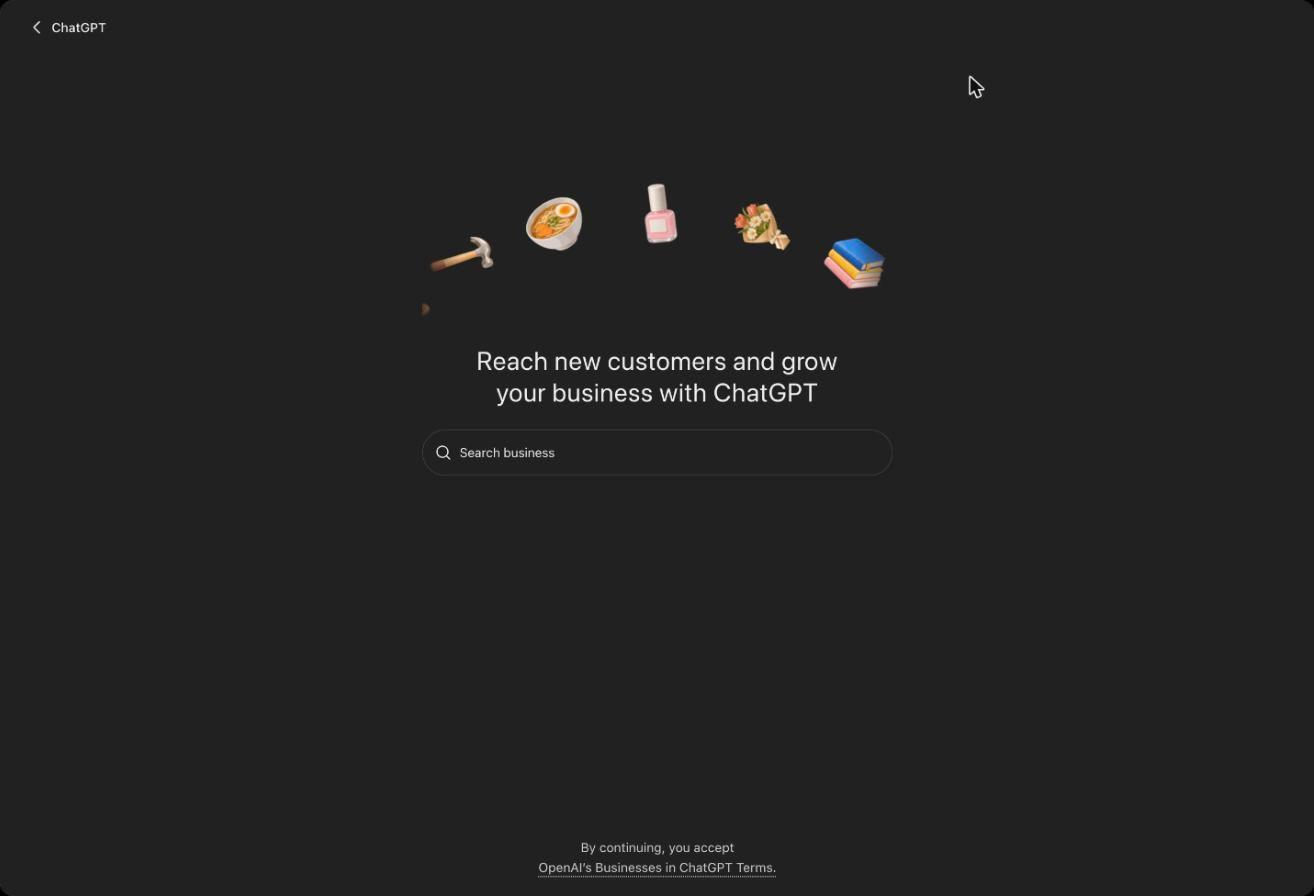
Sign in to ChatGPT and go to chatgpt.com/business-hub. You will see “Reach new customers and grow your business with ChatGPT” and a search box.
- Step 2
Search for your business
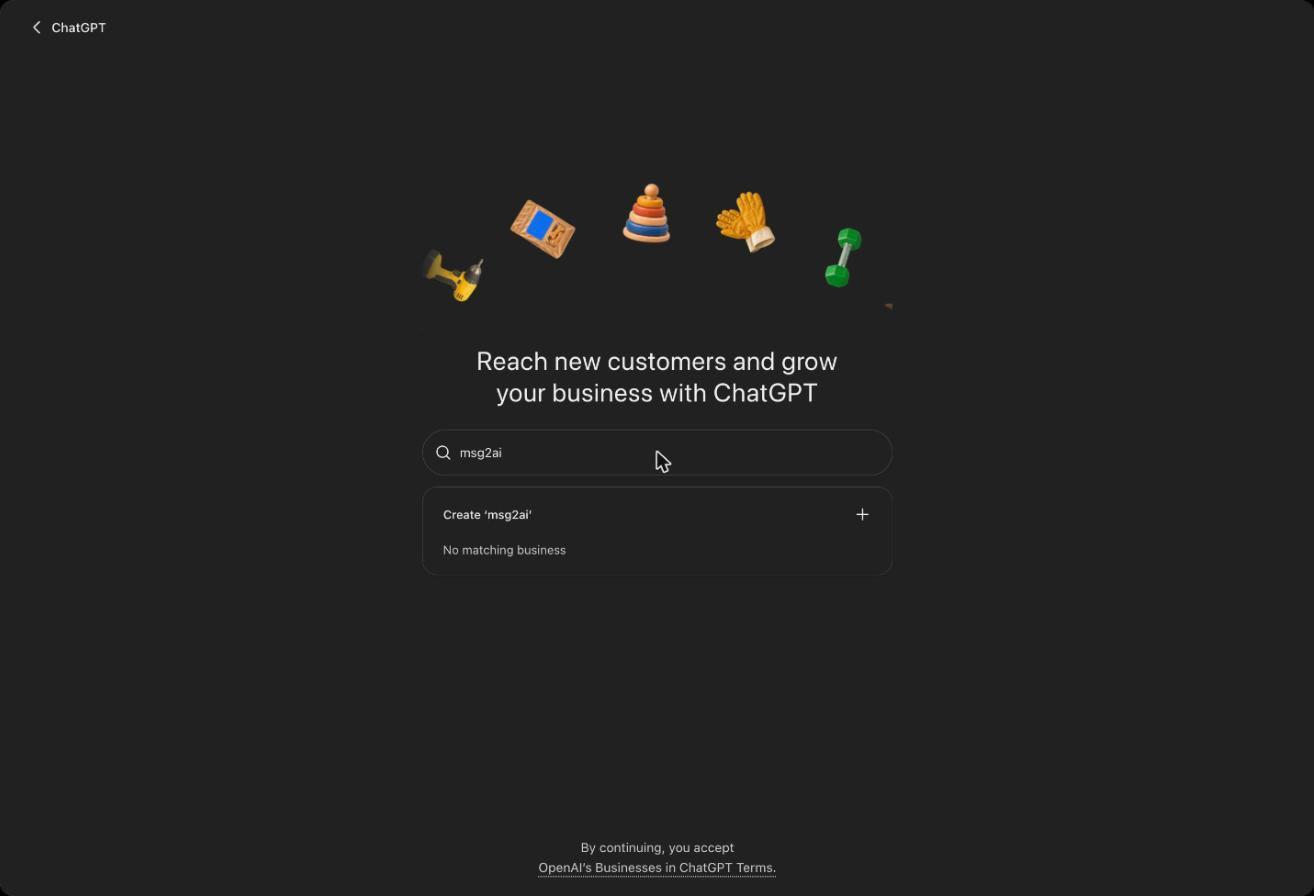
Type your business name. If ChatGPT already lists it, choose it. If it says “No matching business”, choose Create to add it. By continuing you accept OpenAI's Businesses in ChatGPT Terms.
- Step 3
Find your business in the list
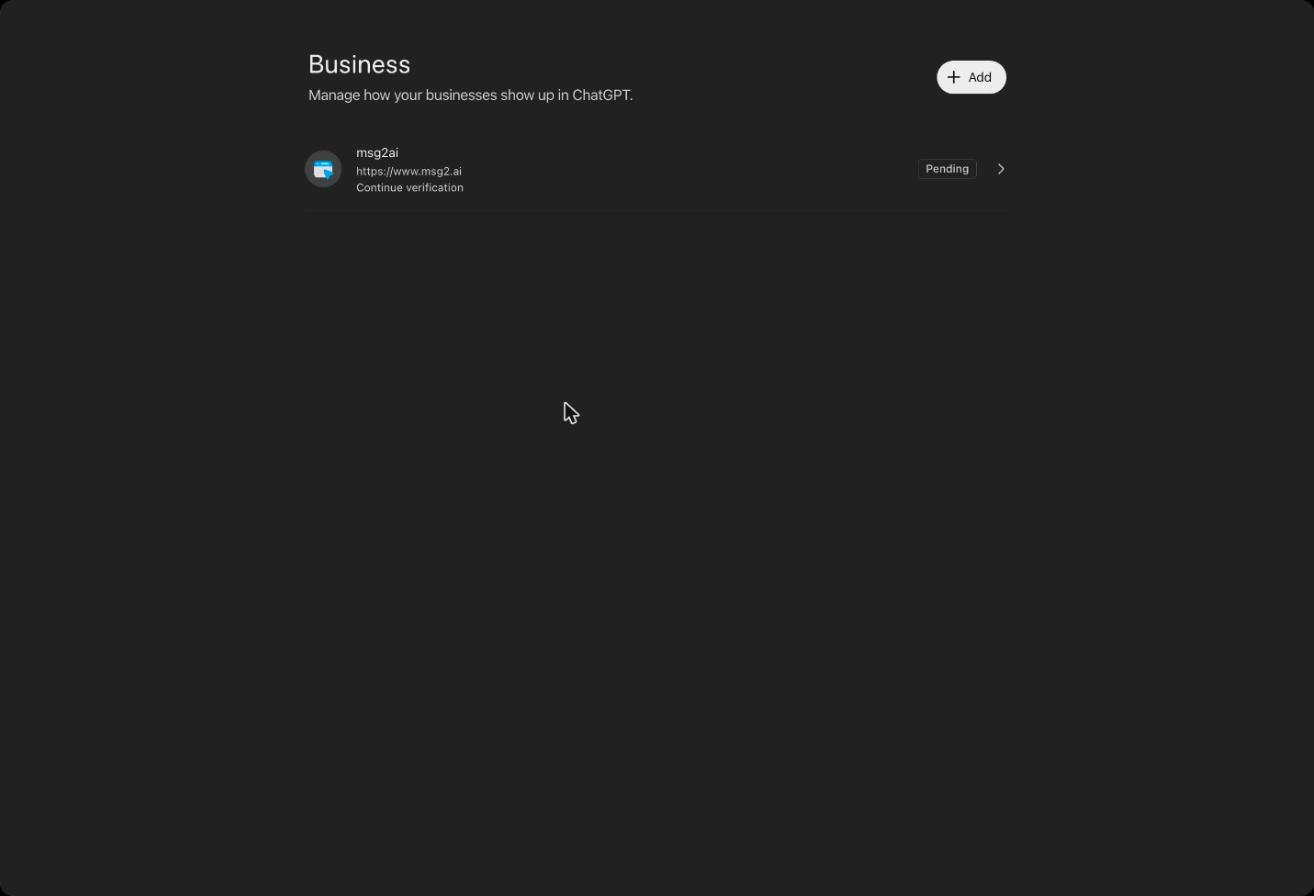
Your business now appears under Business with a Pending label and “Continue verification”. Open it to carry on.
- Step 4
Open your draft profile
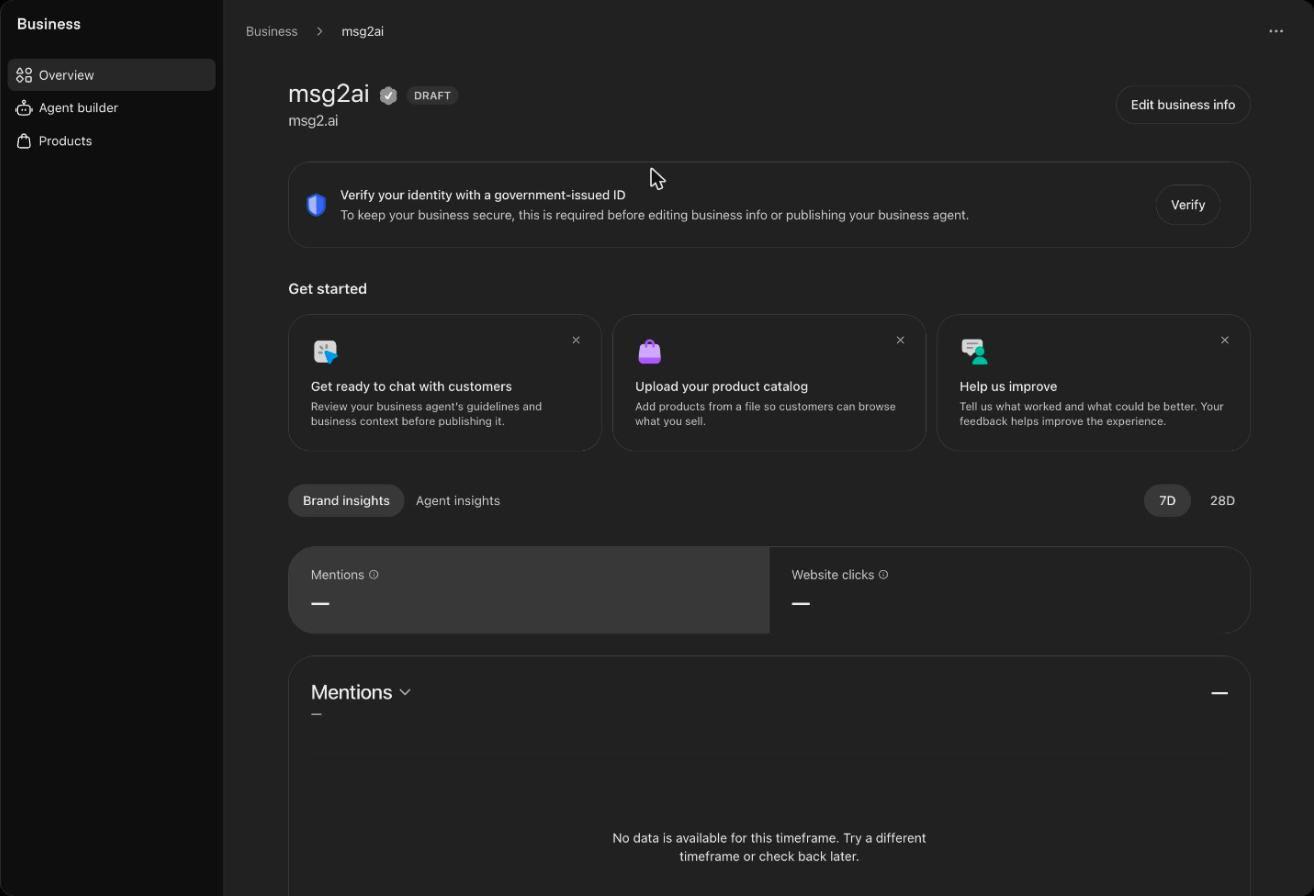
The profile starts as a Draft. The overview shows a banner asking you to verify your identity, a Get started section, and insights for Mentions and Website clicks, which stay empty until there is data.
- Step 5
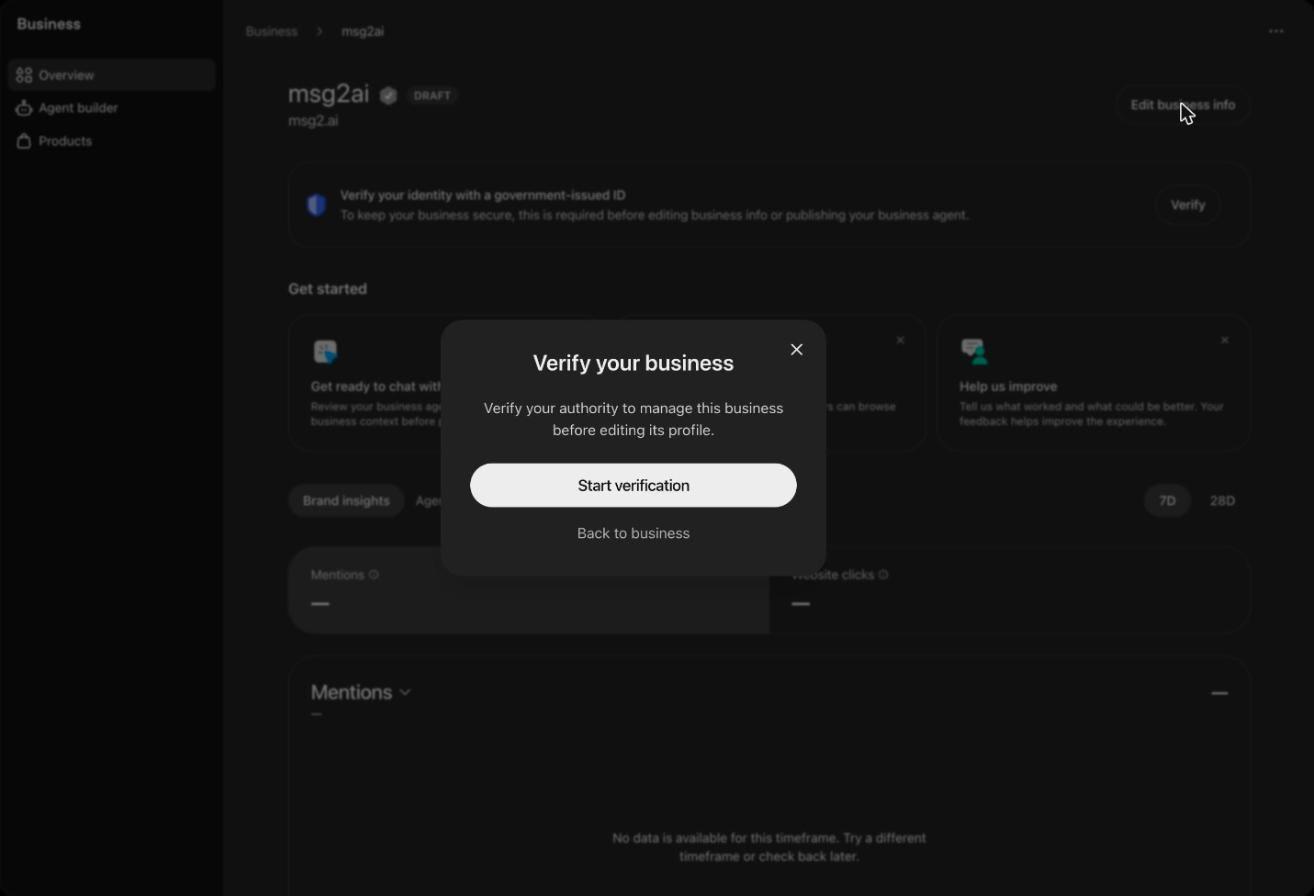
Verify your business
Choose Edit business info, then Start verification. OpenAI asks you to verify your authority to manage the business before you can edit its profile.
- Step 6
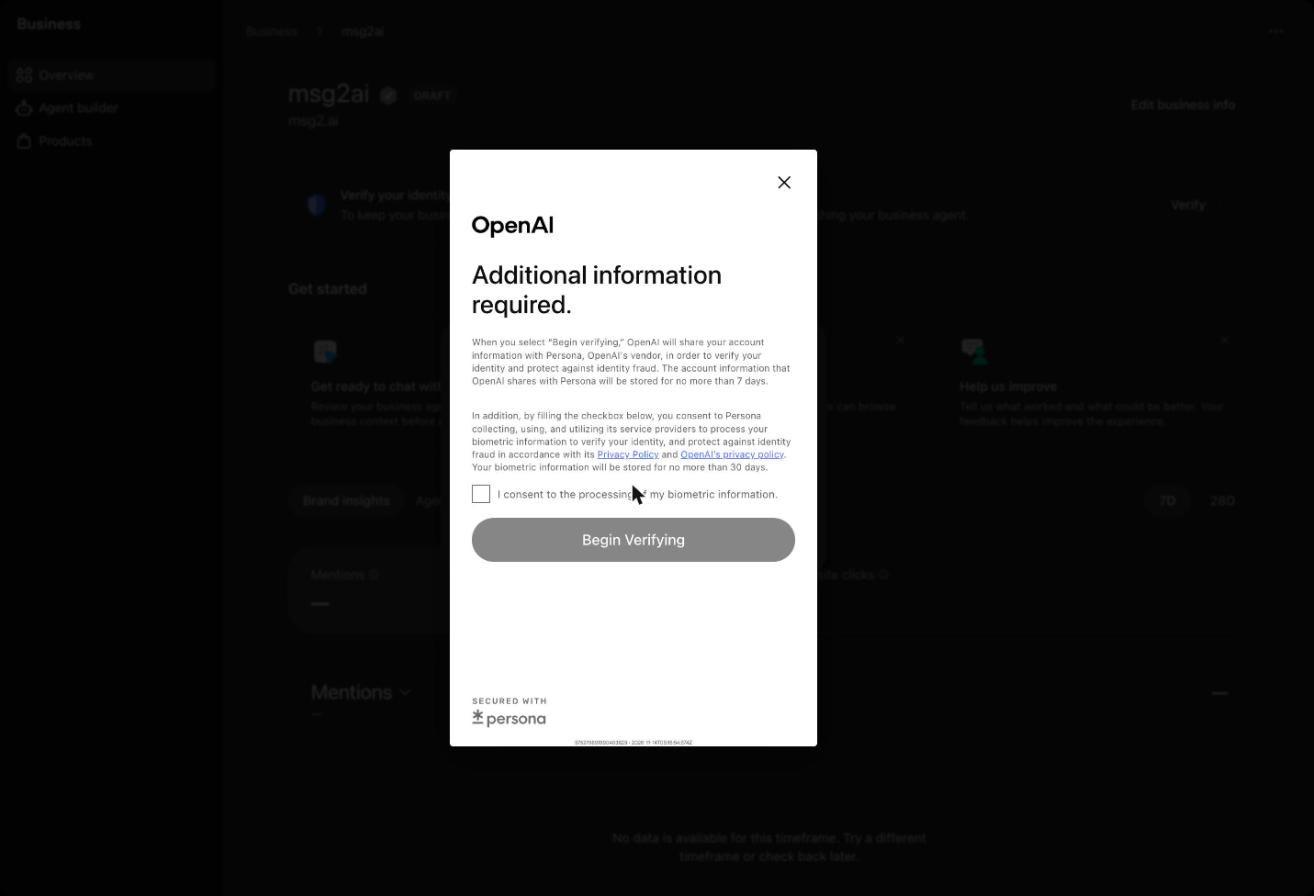
Verify your identity
OpenAI uses its vendor Persona to check a government-issued ID. You tick the consent box and choose Begin verifying. Only the business owner or an authorized manager can do this step: we cannot do it for you.
- Step 7
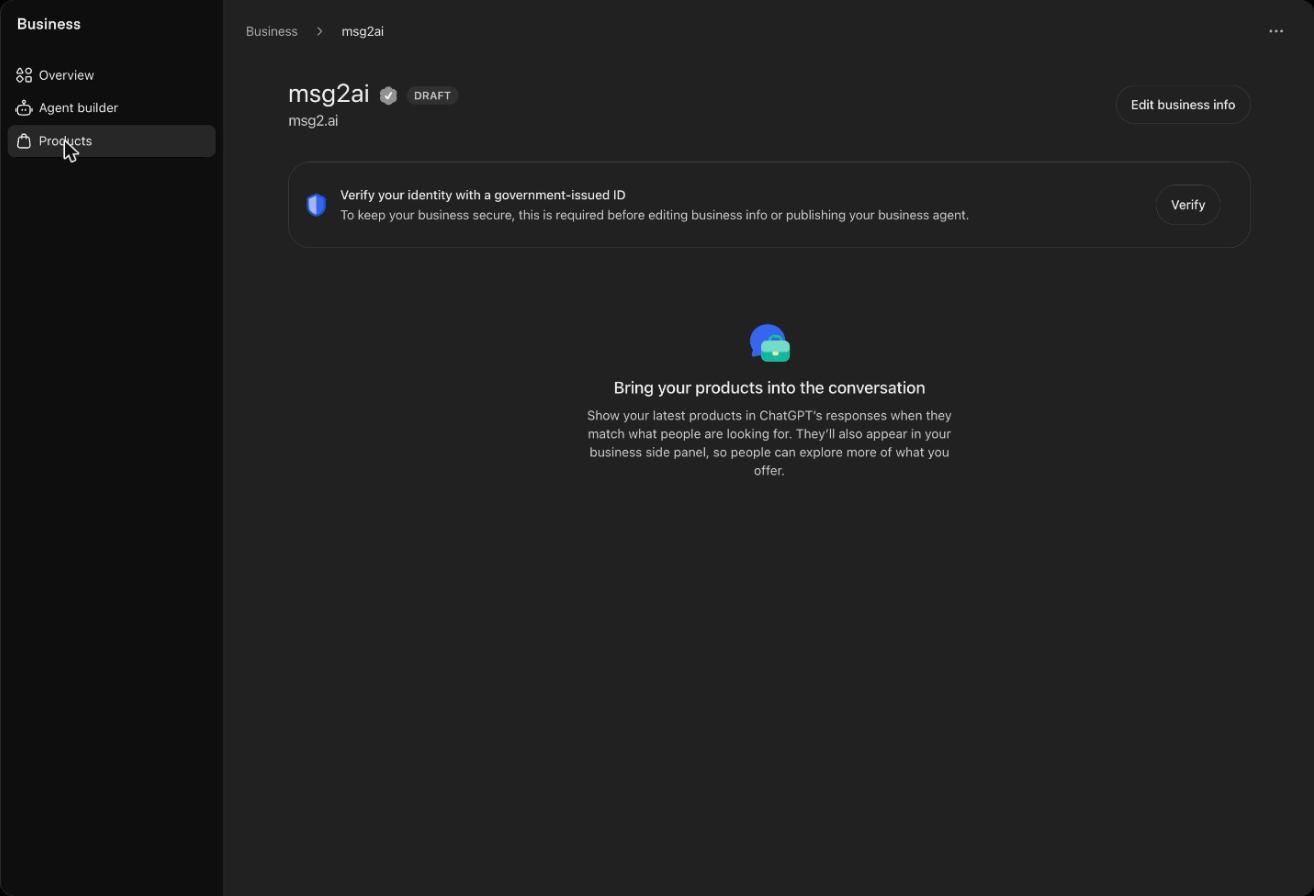
Add your business details and products
Once verified, use Edit business info to check your details, and Products to add what you sell so it can appear in ChatGPT's responses.
- Step 8
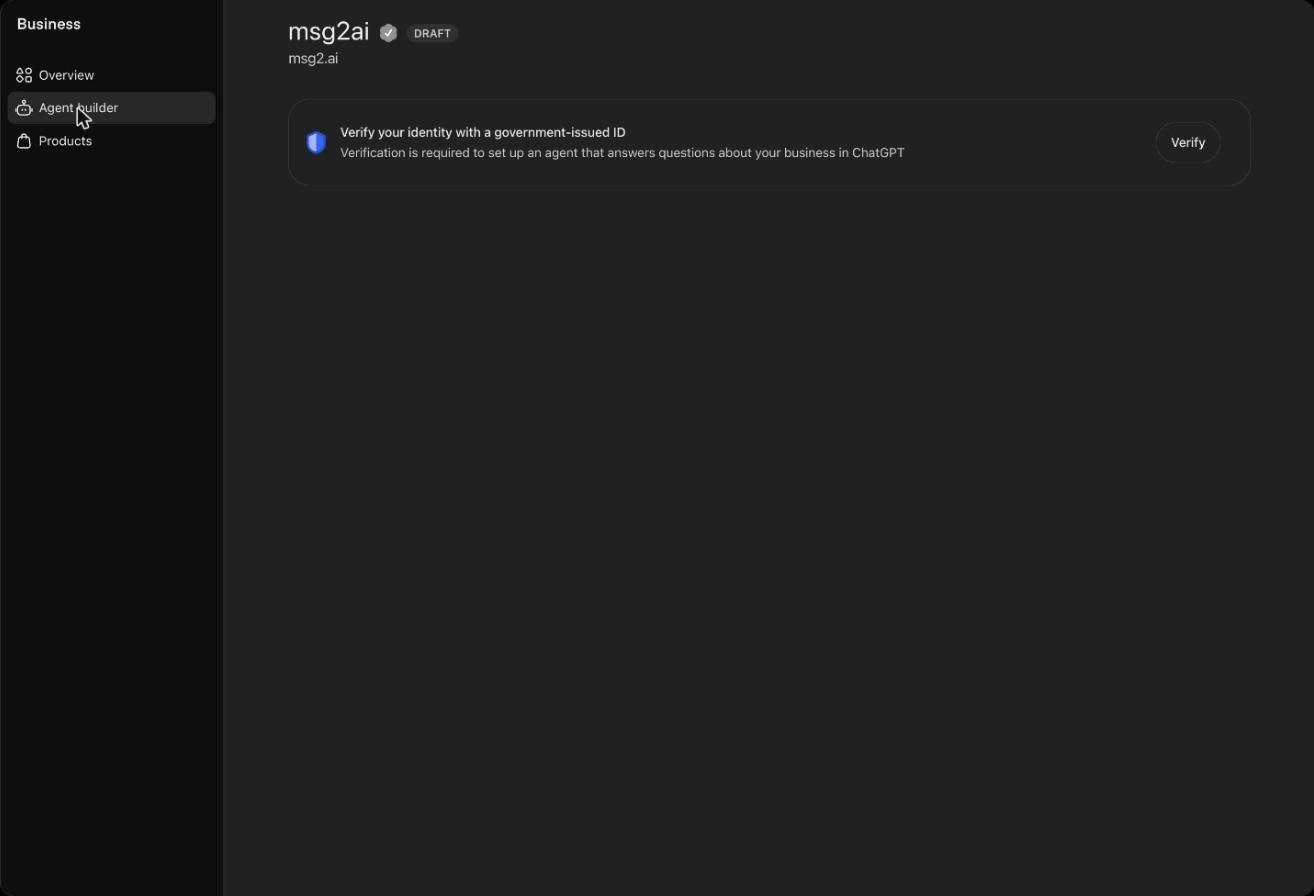
Check the Agent builder
Agent builder is where an eligible business sets up an agent that answers questions in ChatGPT. It needs identity verification too. OpenAI's Business Agents are for eligible US ecommerce and online service businesses at launch.
Local and service business? The BizPlug ChatGPT plug-in for your industry lets customers order, book or request a quote, and sends the request to your team.
Find your industry plug-inScreens are from ChatGPT's Business Hub (beta) in November 2026 and may change. BizPlug is not affiliated with OpenAI. Claiming a profile does not guarantee placement in ChatGPT.